
To add your Mill Creek company email account to your Apple iPhone or iPad, please follow these easy steps:
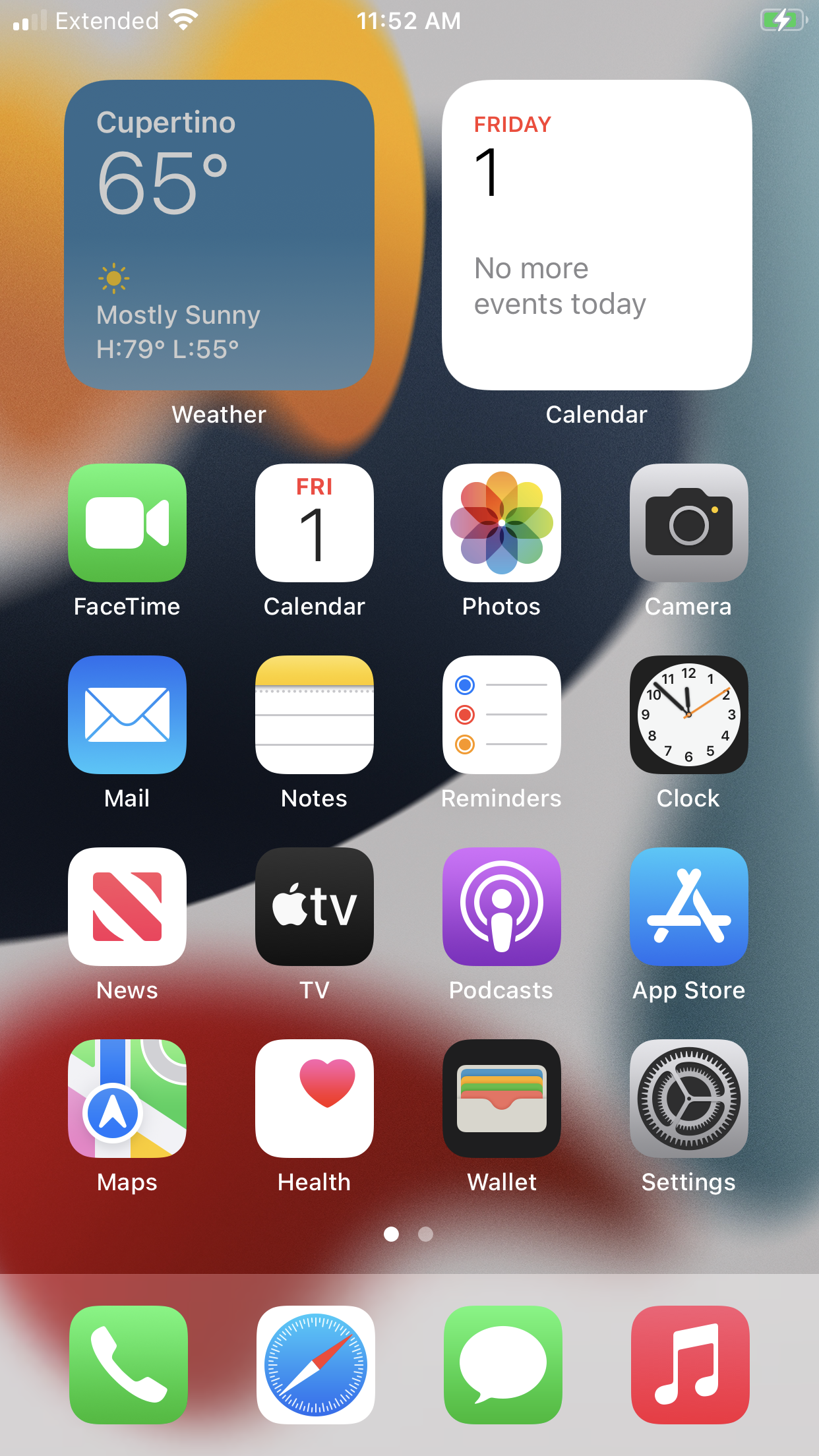
- Tap the silver Settings button.
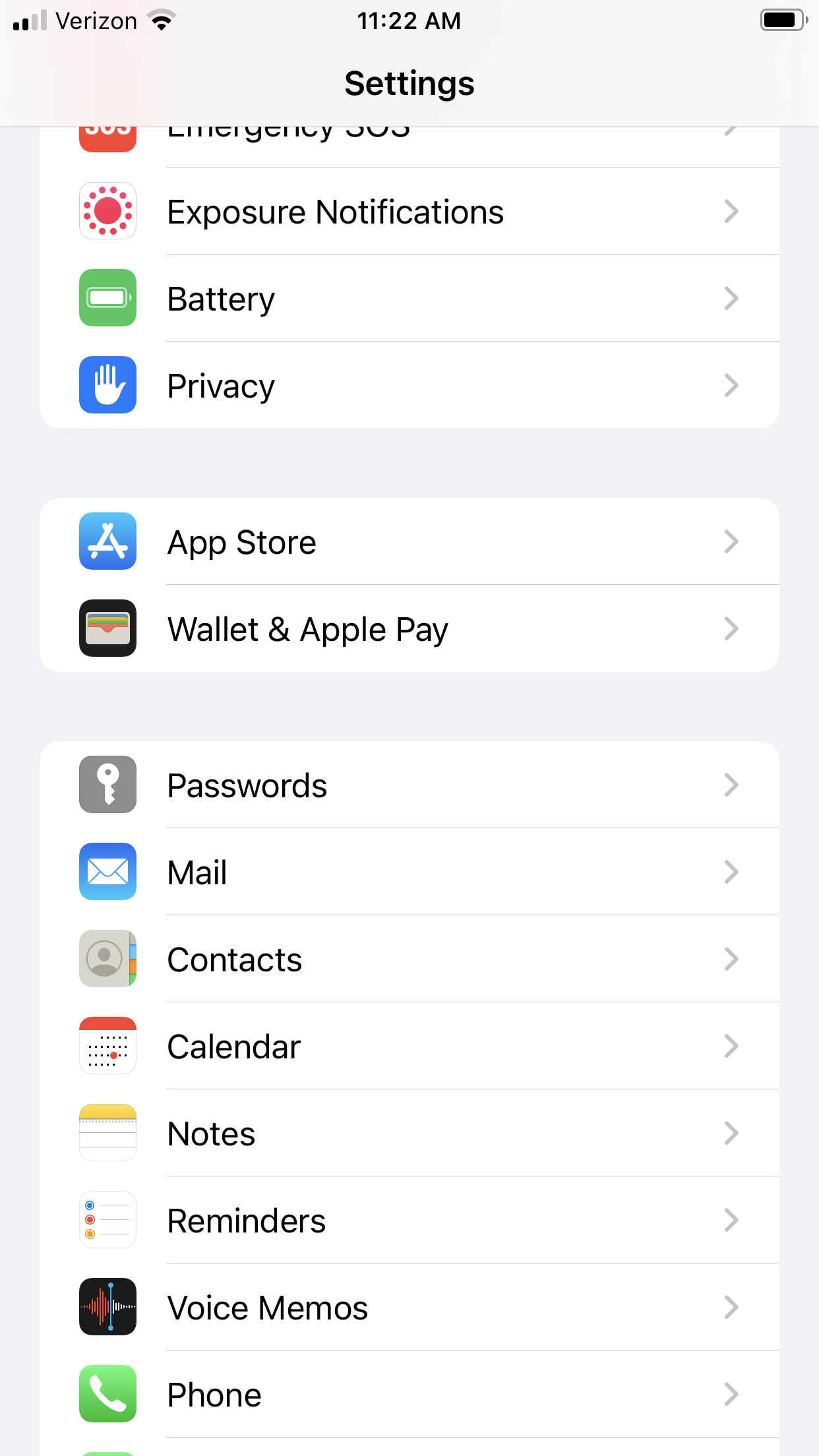
- Scroll down and tap the Mail button.
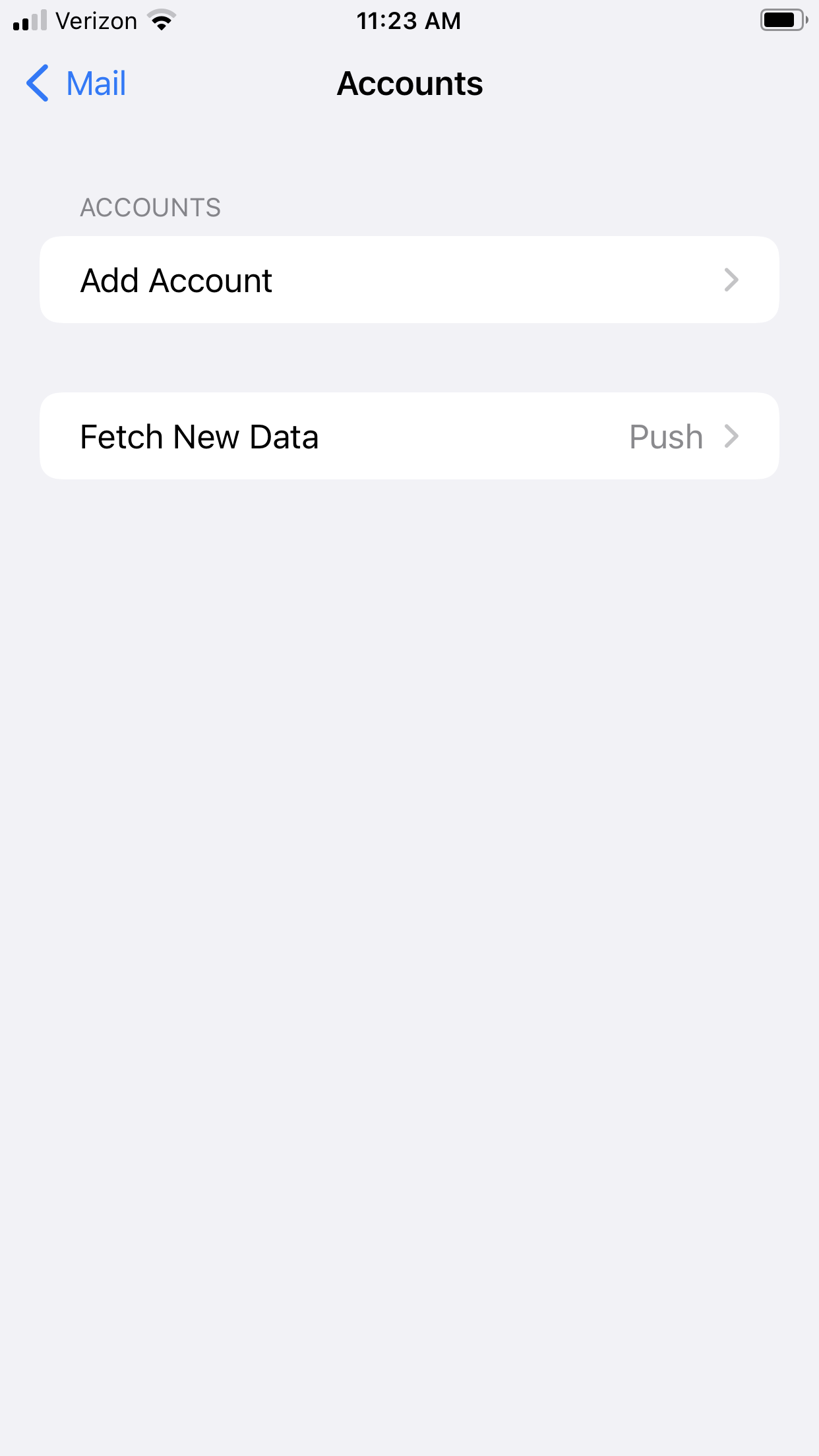
- Tap the Accounts button.

- Tap Add Account.
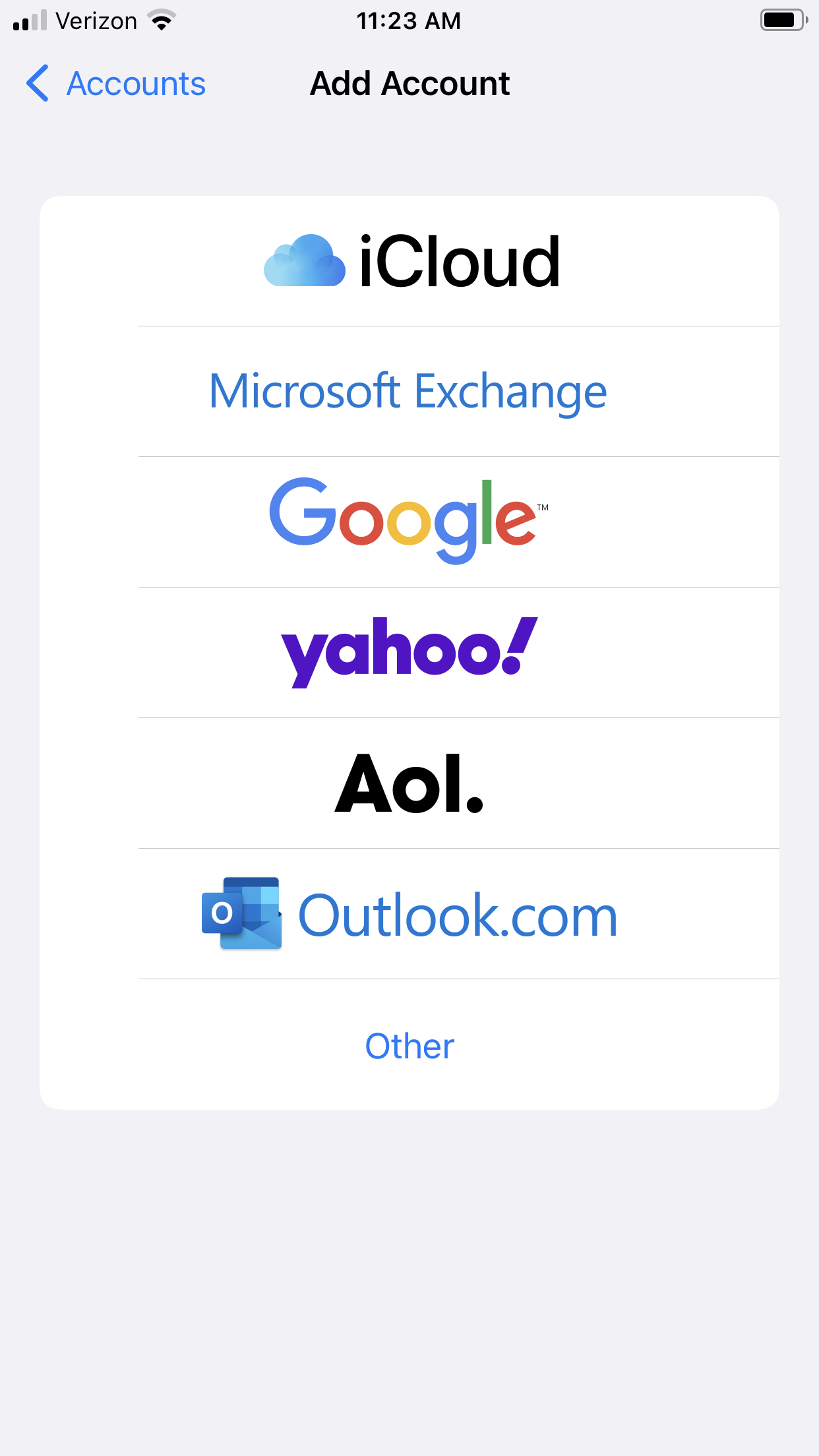
- Select the Microsoft Exchange option.
- Enter your email address.
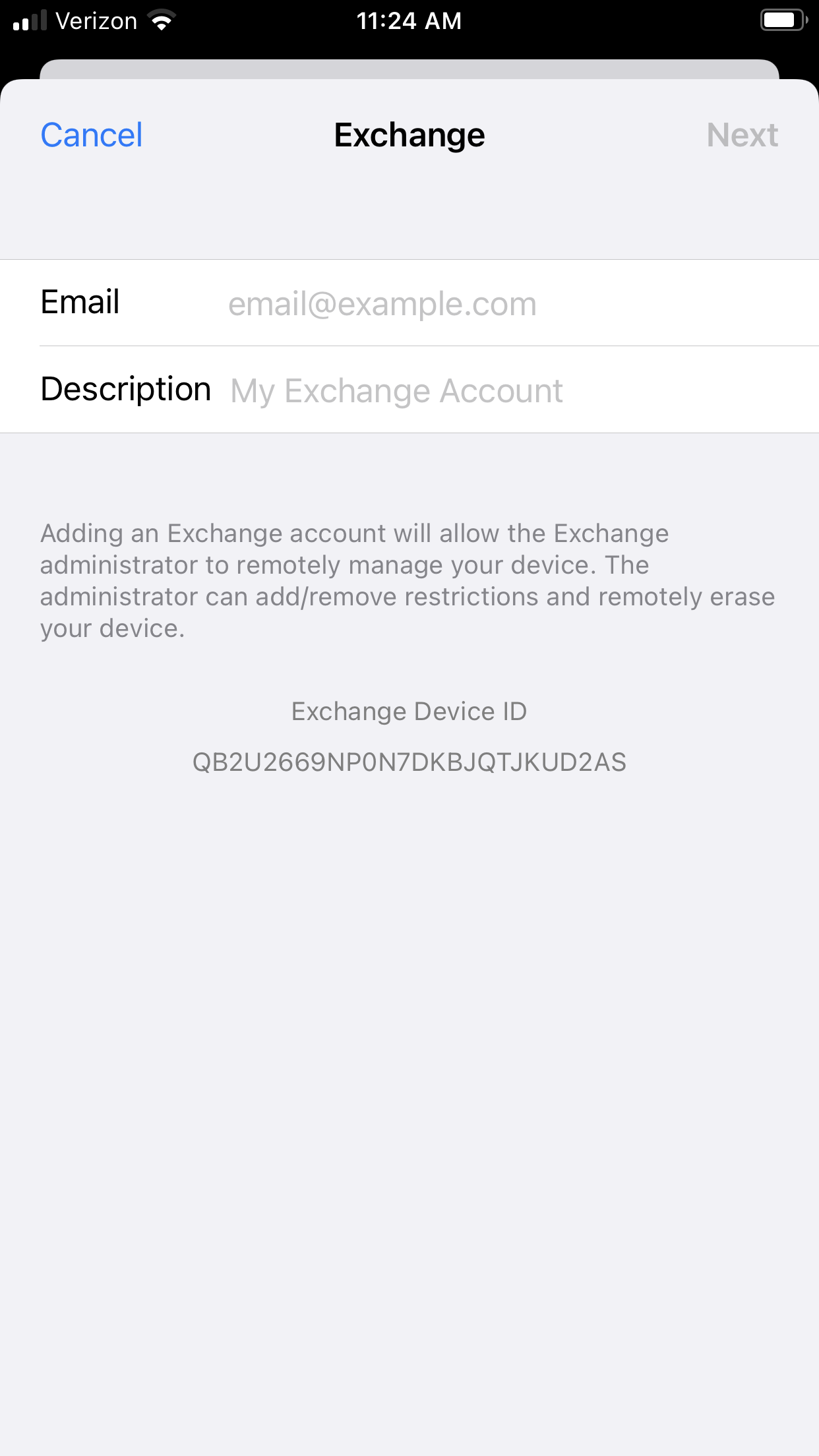
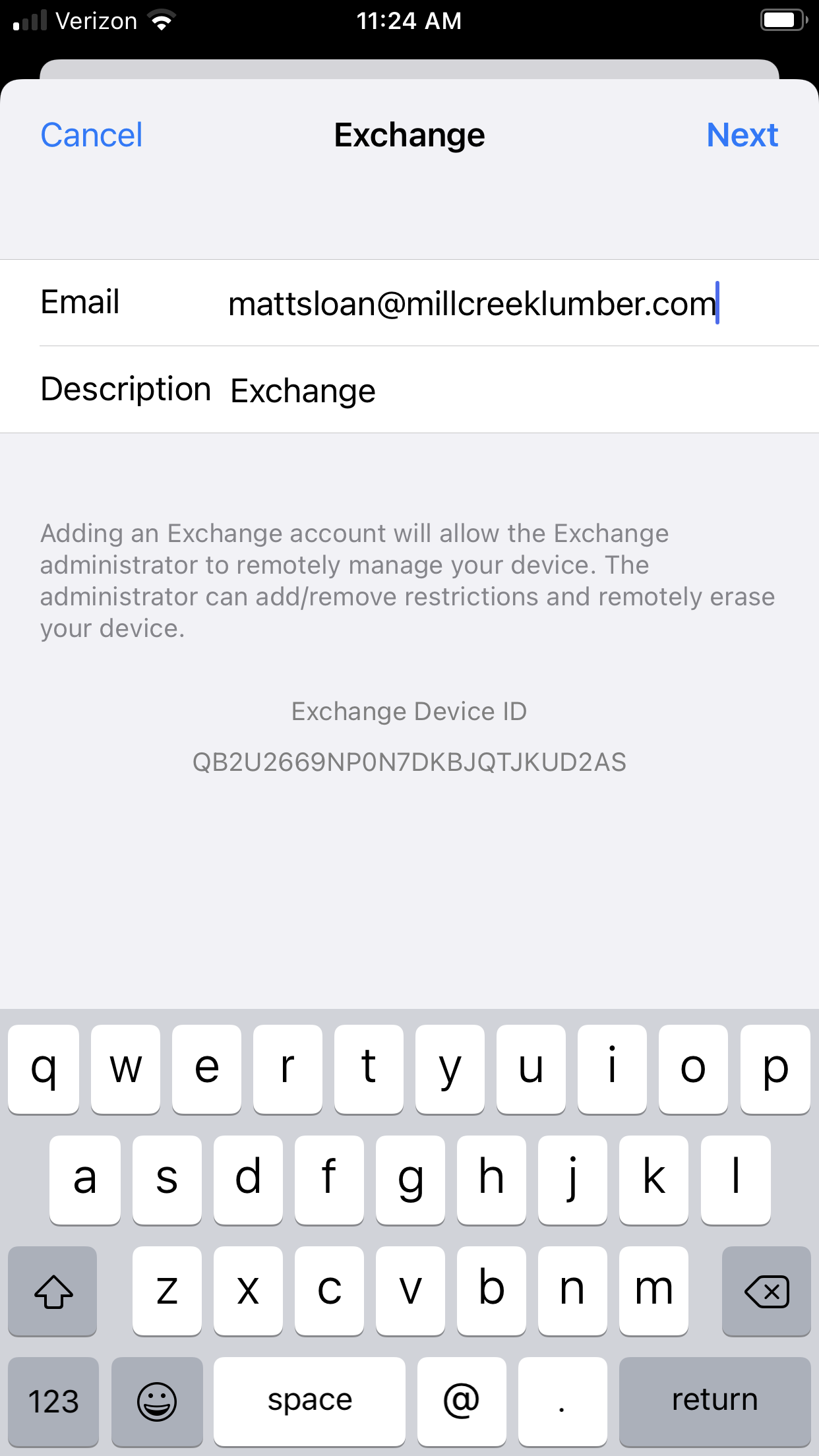
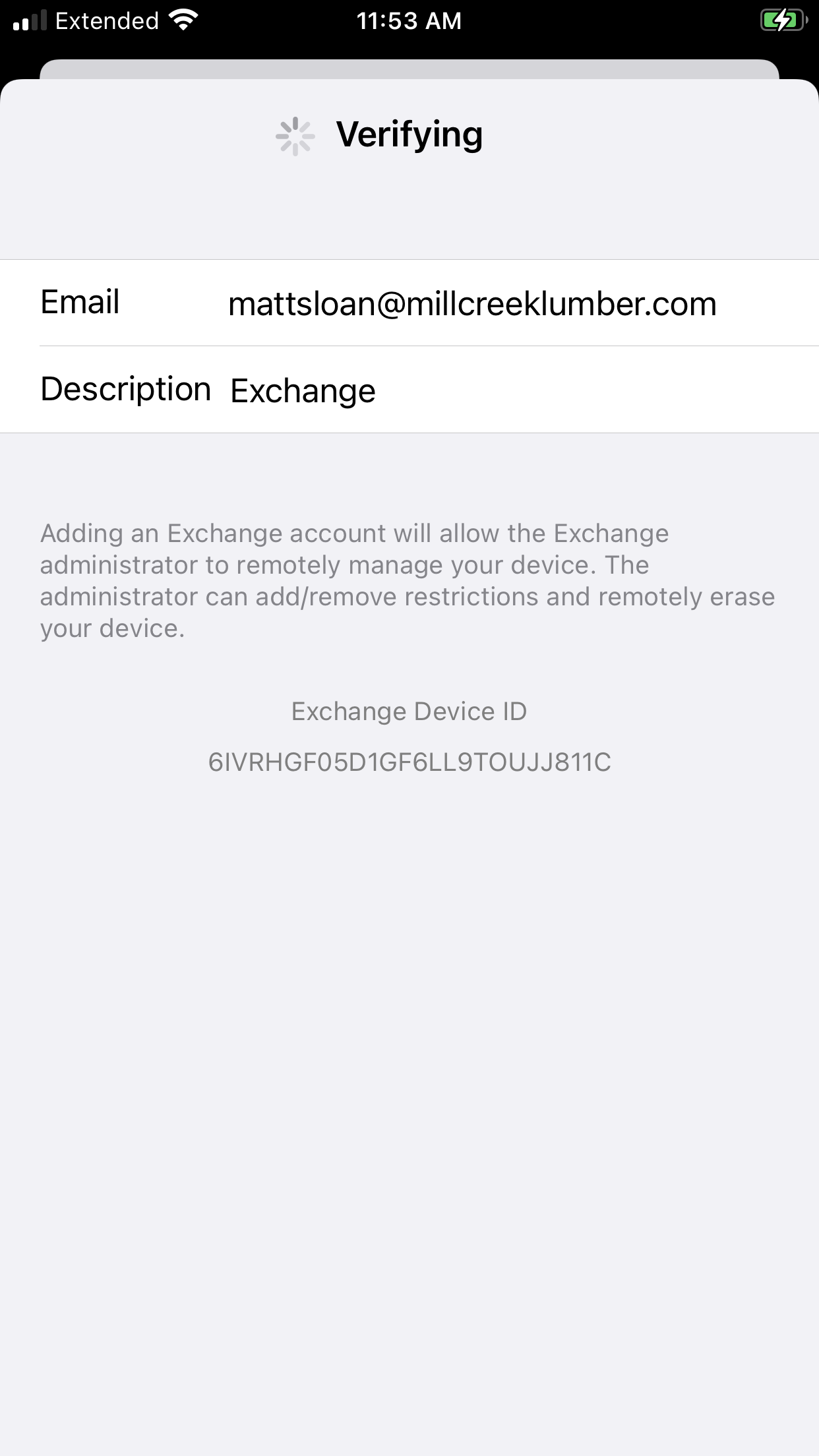
- The description will auto-fill with "Exchange", but you may change it to "Work", "Mill Creek", or whatever you prefer. Then tap "Next".
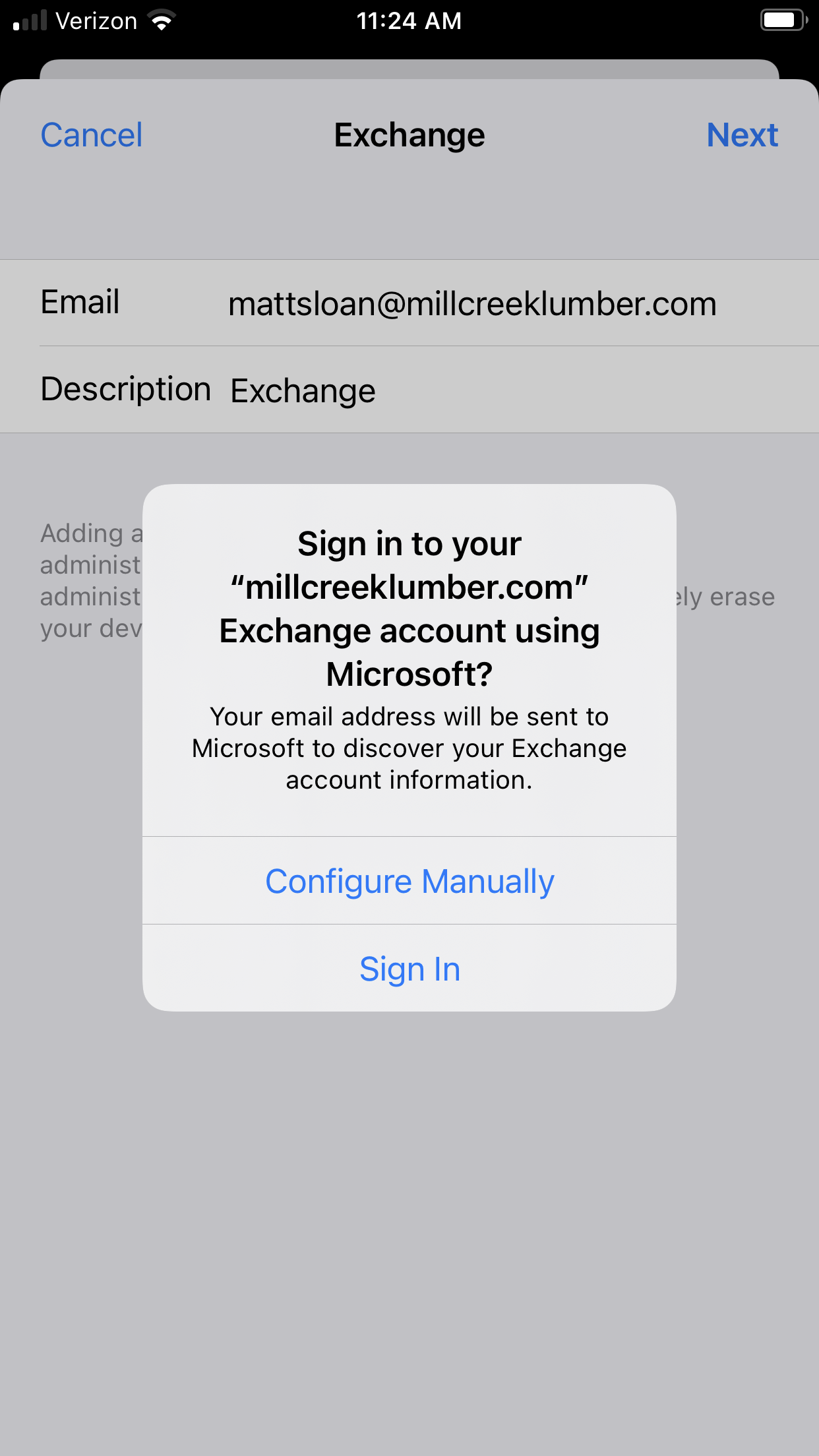
- Tap "Sign In" from the box that pops up. Do NOT tap "Configure Manually."
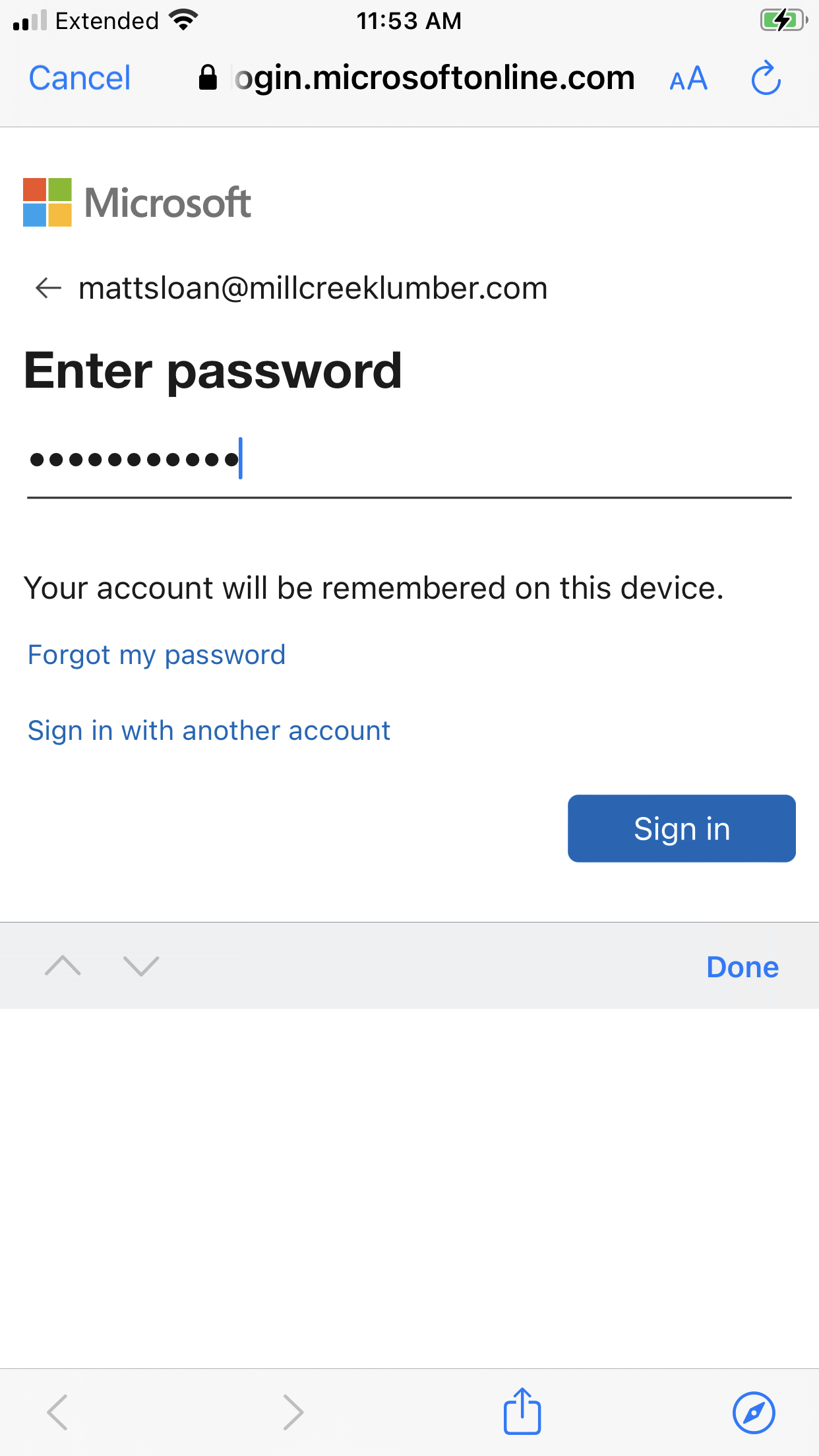
- Enter your email password. This is the same password you use when you sign in to your Windows PC at work. (if you don't know your password, or don't have a PC, contact the IT department for assistance).

- After entering your password, tap the "Sign in" button.
- Wait a few moments while the account is verified.
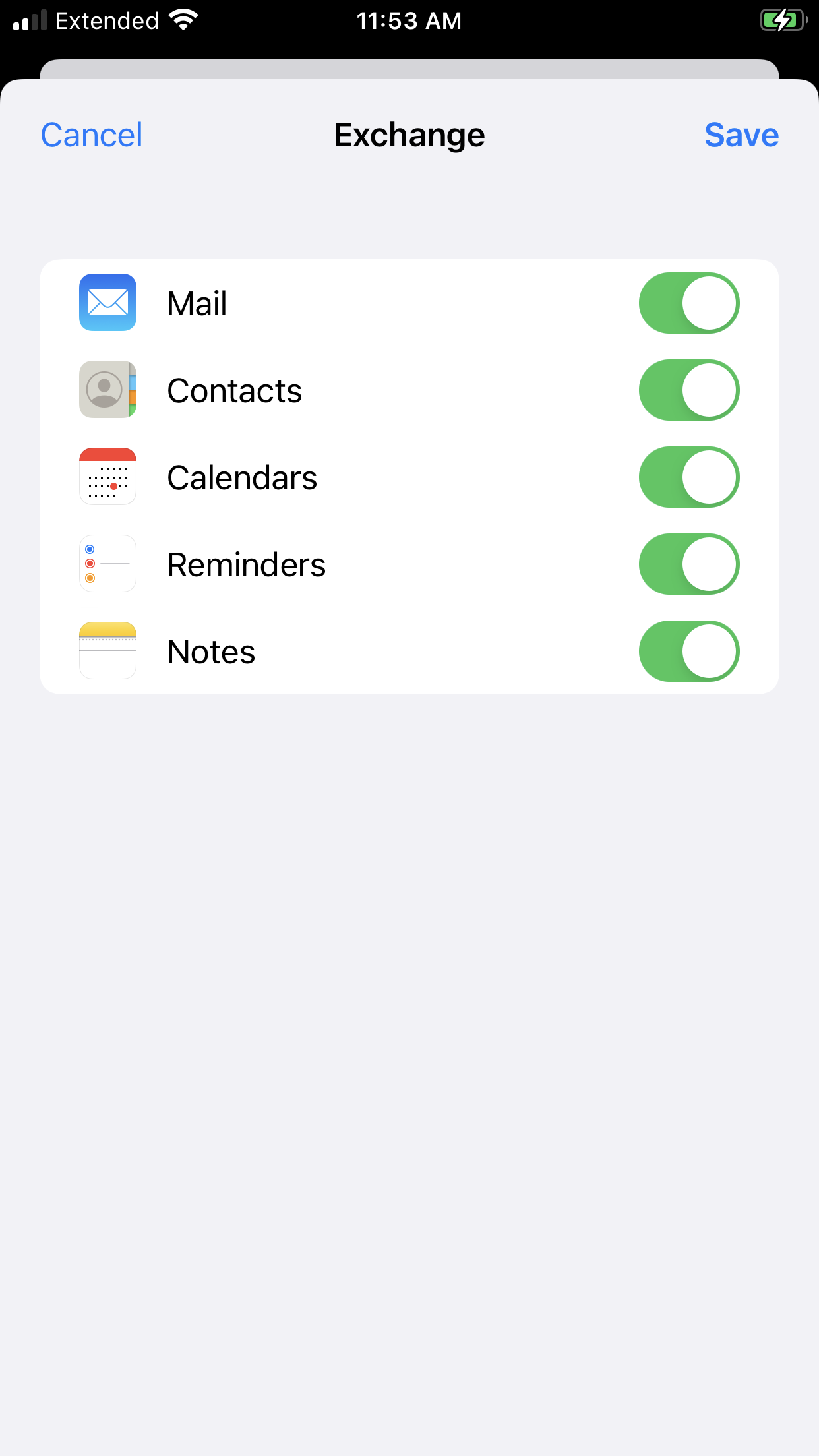
- Ensure that all of these options are turned on in green. Then tap "Save."
That's it, you're all done! You can go back to the Home screen and open your email.
Please note that your contacts will have disappeared if you deleted your old account, but they will reload after you add your account back onto your phone. However, it may take a few minutes to sync back up fully, so please be patient.
Comments
0 comments
Please sign in to leave a comment.